
Author : Vivek Vardhan Varanasi
Talend Studio Practices – Pointing JDK to Talend Studio
- Install JDK 1.8.151 64 bit on your windows machine
- Set JAVA_HOME, JRE_HOME
- Point Talend Studio to installed JDK from following location
- Go to window -> Preferences -> Talend and Java Interpreter

Typical Studio should have following settings where JAVA is pointed correctly

Increase Talend Studio memory
Increase your Talend studio memory – Go to Talend Installed directory and change xms and xmx values based on your system memory. Ini file name should be Talend-Studio-win-x86_64.ini


Setup Reference Project from Talend Studio – Feature is no more available in Talend TAC 7
Notice: Reference projects now managed in Studio. Read Release Notes how to migrate. If you want to remove reference – use DeleteProjectReference operation in MetaServlet.
Go to File -> Project Settings -> Click on Reference projects -> Added new reference -> Select project and add corresponding branch and click +.
Note : Don’t forget to click on + symbol.


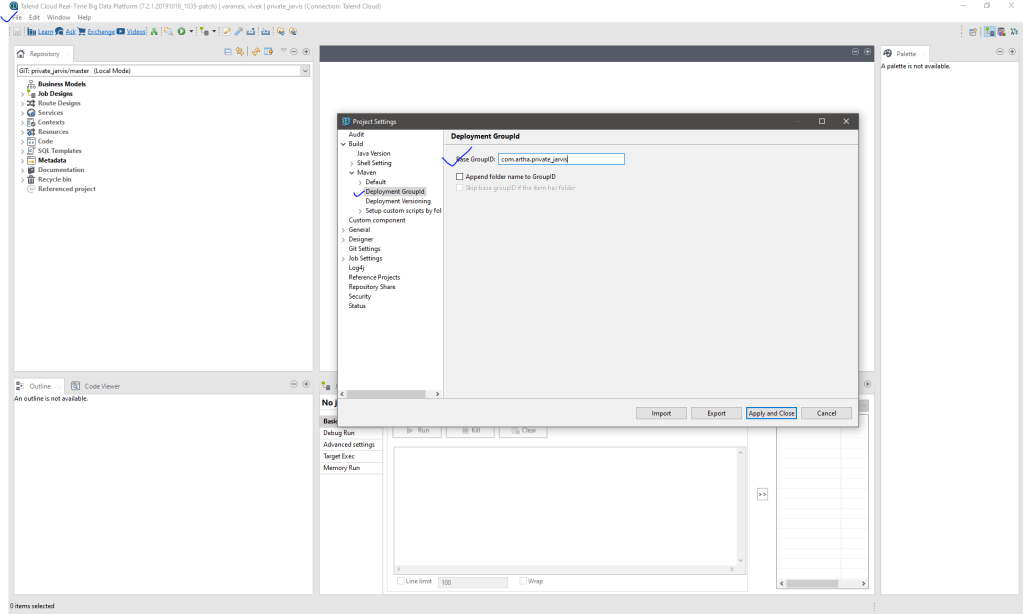
How to Change GroupId in Talend studio
The default Group Id in Talend studio is org.example.projectname
You need to change to com.clarkconstruction.talend – To do these changes you need to go file -> project settings -> Build -> Deployment groupid
Publish Snapshot or Releases
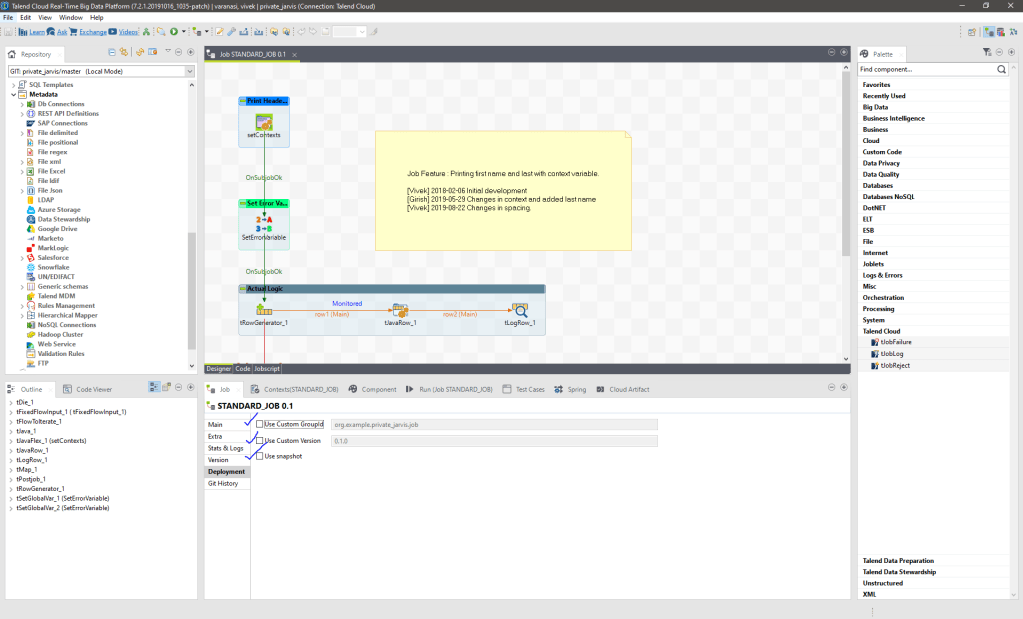
In order to deploy a snapshot – Open Talend Studio – Open Talend Job
Go to Job Tab and navigate to Deployment Tab -> Select the check box Use Snapshot
After migration you need to resync poms – to make sure all code is up to date.
In order to make sure all your pom’s are up to date – you need to click on force full re-synchronize poms.
This will help during your CI – CD process.
It will make sure poms/pom.xml is update to date.

How to make sure your Talend studio pointing to right snapshot or releases ?
- Go to Talend Studio -> window -> Perferences -> Talend -> Artifact Repository -> Repository Settings
- Now check your repository settings tab
- You should see all the repository settings pre-populated.
- Now in 7.2.1 All these settings come from TAC itself.
- If you ever want to change these default settings, you need to click on Use Customized Settings and type the following default release repo and default snapshot repo.
- Note : We don’t recommend you to change default settings as this might cause problems in managing at nexus.

Install all Additional Packages – Talend studio
In order to install all additional packages, which are needed by Talend studio you need to do following
Go to Help -> Install Additional Packages
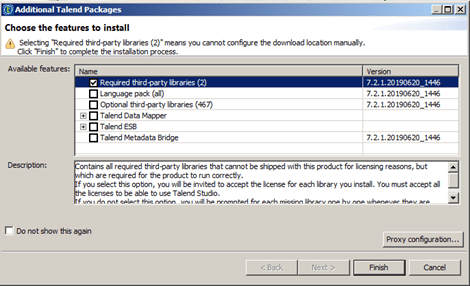
You should see following pop-up
Once you say Finish , you should accept all

[ERROR] The code of method (Map<String,Object>)
is exceeding the 65535 bytes limit
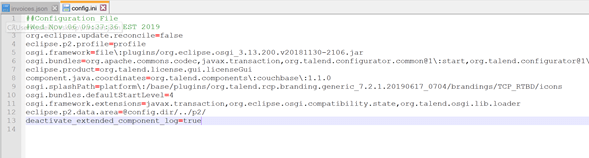
In Talend 7.2.1, some Jobs may fail in code compilation with an error of “65535 byte code”. This may happen in some specific Job designs where the code generation is already at the 65 KB limit.
You can prevent this error by the following parameter to the config.ini file located in the configuration folder under your Talend Studio installation directory:
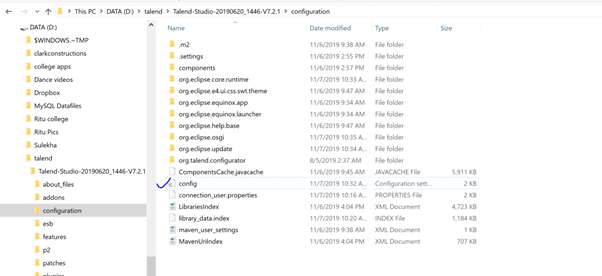
deactivate_extended_component_log=true
 Talend Best Practices
Hi Guys,
This site was really very useful, found very interesting. Thanks for the quality contents.
LikeLike